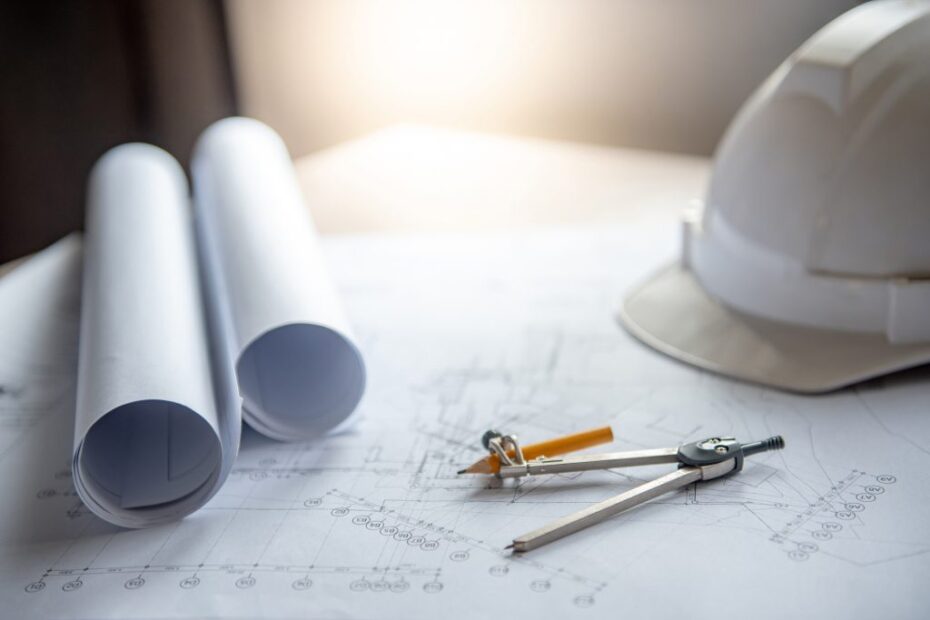
Errors in CAD drawings may seem minor at first, but when handed off to site teams, they can trigger major delays, extra costs, and frustration. According to industry sources, simple drafting errors are among the top causes of rework on-site. For firms offering CAD Services, BIM Services, and construction documentation (like yours), focusing on drawing quality is a key way to avoid downstream risks.
1. Starting a Drawing Without Setting Units or Scale
One of the most fundamental errors is jumping into a new drawing without properly defining units or scale.
Why it matters: If someone draws in inches when the site expects millimetres (or vice versa), everything from block insertions to printed sheets can be wrong. On-site, this means wrong parts, misfit components, and rework.
How to avoid it: Ensure your CAD template includes the correct unit settings and scale from the start. Incorporate a standard pre-drawing checklist that covers units, scale, drawing name, and reference system.
2. Freehand Alignment Instead of Using Snaps & Grid
When designers eyeball alignment rather than using proper snaps or gauges, small misalignments accumulate.
Why it matters: Tiny gaps or mispoints cause geometry to not connect properly, parts may shift when fabricated, and on-site alignment becomes problematic.
How to avoid it: Mandate the use of object snaps (OSNAP), grid/ortho modes, and polar tracking. Build templates or training so that manual “close enough” methods are not used.
3. Over-use of a Single Layer or Poor Layer Management
Putting everything on one layer (geometry, annotations, references) may feel quick, but it creates chaos.
Why it matters: Poor visibility control, inaccurate plotting, confusion in mark-ups or revisions—all of which can trigger on-site misinterpretation.
How to avoid it: Develop and enforce a standard layer structure. Use clear naming conventions (e.g., “STRUCT-WALLS”, “DIMENSIONS”, “ANNOTATION”). Use audits to report unused layers or mixed content.
4. Inconsistent or Unreadable Annotation and Dimensions
Annotations are the communication tool of your drawings. When they’re inconsistent, people misinterpret them.
Why it matters: On-site crews rely on dimensions and notes. If they’re unclear or inconsistent (fonts vary, dimension styles differ), the wrong parts might be fabricated or installed incorrectly.
How to avoid it: Use template dimension styles. Standardise fonts, sizes, and tolerances. Implement a review step where annotations are checked for clarity and consistency before release.
5. Gaps or Overlaps in Geometry / Unclosed Shapes
Lines that don’t join or overlap slightly can affect hatching, CNC paths, fabrication outputs, and site installations.
Why it matters: Fabricators may see “closed” shapes that aren’t actually closed, or overlapping geometry may confuse machine processing. On-site, this turns into pieces not fitting, extra cuts, or remakes.
How to avoid it: Run geometry cleanup commands (AUDIT, OVERKILL, PEDIT) in your CAD tool. Include checks for closed polylines, no stray lines, and no overlaps. Standardise drawing cleanliness before issuing.
6. Improper Use of Blocks or References (Exploding Blocks, Mis-managing Xrefs)
Using the wrong block strategy or mismanaging external references often leads to inconsistent drawings and revision chaos.
Why it matters: When blocks are exploded, the standardisation is lost; when references are mismatched, the drawing may embed outdated geometry. On-site, this can result in conflicting drawings, parts that don’t align, and extra re-work.
How to avoid it: Use blocks properly, edit within block definitions, not by exploding. Use external references (Xrefs) for shared geometry, enforce version control, and ensure everybody uses the current file.
7. Wrong Plot Scale or Viewport Setup
A drawing may look fine on screen, but when printed or viewed at plot scale, things shift.
Why it matters: Viewports that aren’t scaled correctly cause discrepancies between printed sheet and real-world dimensions. On-site, this means crews working from wrong values and needing adjustments.
How to avoid it: Always verify paper-space viewports, test-print sheets, and include a “check output” step in your CAD workflow. Use plot scale annotations on sheets to remind users.
8. Sending “Dirty” Files: Unpurged, Bloated, Hidden Errors
When drawings accumulate unused layers, stray objects, duplicate entities, or errors, they become inefficient and risky.
Why it matters: Large files may slow down systems, hide obscure errors, and make coordination or modelling harder. On-site, this can translate into mismatches, slow updates, or misinterpretation of drawings.
How to avoid it: At the issuing stage: purge unused layers/blocks, run audit commands, remove duplicates, and confirm file size & performance. Keep drawing footprints lean and consistent.
9. Lack of Coordination Between Disciplines / Clash Issues
When multiple disciplines (structural, architectural, MEP) work in isolation, drawings misalign, and on-site conflicts arise.
Why it matters: Without coordination, structural beams may conflict with MEP runs or architectural elements. On-site, this means redesigns, re-routing, and delays.
How to avoid it: Implement coordination reviews early, share models or drawings among disciplines, use clash detection if possible, and schedule cross‐discipline communication. Make sure your CAD Services include coordination steps.
10. Poor Version Control & Revision Tracking
Many teams fail because they aren’t sure they’re working from the latest drawing version. Rework often results from outdated drawings being used on-site.
Why it matters: A drawing issued yesterday might get changes tomorrow; if the site uses the old version, they plan and build incorrectly, then they must fix.
How to avoid it: Use a revision management system (clear revision numbers, date stamps, drawing status locked). Distribute drawings in such a way that only the newest version is active. Archive old ones with clarity.
Why Fixing CAD Mistakes Matters for Your Entire Project
Reducing rework doesn’t start on the construction site. It begins at the drafting table. Eliminating common CAD mistakes improves clarity, prevents clashes, reduces delays, and supports smoother construction workflows. Investing in accurate CAD drafting also helps teams budget better, avoid redesigns, and maintain project momentum. If your projects rely on precise documentation, taking control of CAD quality can save time, money, and stress throughout the lifecycle of your build.
Improve Your CAD Quality and Reduce Rework Today
If you want clearer drawings, fewer site issues, and higher project efficiency, our team can help.
At CAD Drafting Services UK, we specialise in producing accurate, coordinated, and error-free documentation that prevents rework and keeps your project moving.
Get in touch today to request a free quote or discuss your project requirements.